|
| Top | Business Info | Data | Customers | Labels | Letters | Reports | Tools |
Managing your Letters
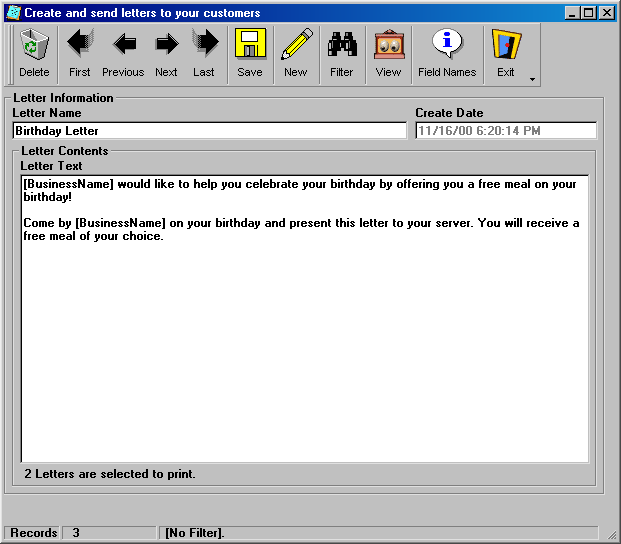
Letters are a powerful tool that you can use to notify your customers of important events. You can create and save as many custom letters as you need. Letters can be customized for each Individual customer by using Database Field Names, which inserts each customer's information into the letter. If you select the Letter screen from the Main Screen, a letter will be created for each customer in your database. If you select the Letter screen from the Customer screen, a letter will only be created for your filtered customer set.
Toolbar Options
Delete
Delete the Current customer. If changes have been made to the current record, IDVerify will prompt to save changes.First
Move to the first customer record. If changes have been made to the current record, IDVerify will prompt to save changes.Previous
Move to the previous customer record. If changes have been made to the current record, IDVerify will prompt to save changes.Next
Move to the next customer record. If changes have been made to the current record, IDVerify will prompt to save changes.Last
Move to the last customer record. If changes have been made to the current record, IDVerify will prompt to save changes.Save
Save the current record.New
Insert a new customer record into your database. If changes have been made to the current record, IDVerify will prompt to save changes.Filter
Using a filter can be a handy tool for identifying specific letter. You can filter Letter Name etc. Once you have identified the letter your want to create, you can then send letters to this group.Clicking once on the filter clears all fields on the Letter screen. Enter any criteria that you want to filter the current recordset by and click filter again. The will filter all of the records based on the data that you have entered and display the first filtered record.
Example: You might want to see only a Letter named SPECIAL EVENT. Click Filter once. Enter SPECIAL EVENT in the Letter Name field. Click Filter again. Only Letters named SPECIAL EVENT will be shown.
To reset the filter to all letters, click Filter once. This will clear all of the fields. Click Filter again. This will select all letters.
You can use more than one field to filter by. If changes have been made to the current record, IDVerify will prompt to save changes.
View
Create and view your letters in print-preview mode.Field Names
Show a list of available Database Field Names that can be inserted into a label. This field is case dependentExit
Clicking Exit exits the Letter screen. If changes have been made to the current record, IDVerify will prompt to save changes.Form Settings
Letter Name
A unique name for the letter.Create Date
Non editable: The date and time the letter was created.Return Address
This is the beginning field of the actual letter creation. The Return Address will be placed in the upper left-had corner of the letter. As with all letter fields, you can place any text or Database Field Names in a letter.Salutation
This is how you will greet your customer in the custom letter.Body
Contains the body of the letter.Signature
How you want to finish your letter.
*Best Viewed with Internet Explorer v.4+
Besides Credit card other payment methods available from Shopping Cart
We ship worldwideHOME
ID-e Age Verifier
Toll Free 1-866-547-8507
Phone 310-547-8501Copyright©All Rights Reserved
Contact us