|
| Top | Business Info | Data | Customers | Labels | Letters | Reports | Tools |
Managing your Identifier Settings
Toolbar Options
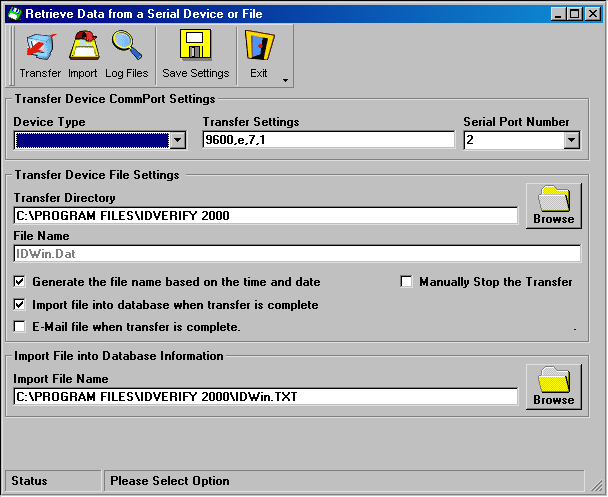
Transfer
Clicking the Transfer Button begins the transfer between the Identifier and your computer. After clicking the Transfer Button, perform the following steps on the Identifier:1) Select ID Menu
2) Select XMIT
3) Select DIRECT XMITThe status bar at the bottom of the screen will show the transfer progress. Note that you must have the correct settings for the Transfer Settings and the CommPort Number for a successful transfer. The file will be places in the same location defined in the Transfer Directory.
Import
Clicking the Import button begins importing a saved file defined in the Import File Name field, into your Customer Database.Save Settings
Clicking the Save Settings button saves any changes that you have made to your Identifier Settings.Exit
Exit the screen. If you have made changes, the screen will prompt you to save your changes.Form Settings
Identifier Settings
Transfer SettingsAdvanced Setting: This is the settings needed for your computer to communicate with the Identifier. Typical settings are 9600,e,7,1. Contact your distributor for additional information on this field.
CommPort Number
The CommPort Number is the port that your Identifier will use to communicate with the Identifier.Transfer File from Identifier Information
Transfer Directory
All files transferred from the Identifier will be saved to this directory.File Name
Default file name for files transferred from the Identifier.Checkbox - Generate the file name based on time and date
If this option is selected, the filename (when transferring from the Identifier to your computer) will be generated based on the current time/date, instead of using the File Name setting. This option ensures that you will not overwrite an existing file and that you can easily identify when a file was transferred.
Checkbox - Import file into database when transfer is complete
Begins importing a saved file defined in the Import File Name field, into your Customer Database as soon as the transfer between the Identifier and your computer is complete.Import File into Database Information
Import File Name
Identifies the file that will be imported into your Customer Database when clicking the Import button on the Toolbar.Status Bar
Panel: Message
Returns important information regarding the status between the Identifier and your computer. Click once on the panel to see any incomplete messages.
*Best Viewed with Internet Explorer v.4+
Besides Credit card other payment methods available from Shopping Cart
We ship worldwideHOME
ID-e Age Verifier
Toll Free 1-866-547-8507
Phone 310-547-8501Copyright©All Rights Reserved
Contact us